
Powerload logo, free freight exchanges Powerload logo, free freight exchanges
  • Home
  • Transporters
    • Load Board
    • Rates
    • Quick Help
    • Documents and Contracts
    • FAQ
  • Shippers
    • Post Loads
    • Rates
    • Quick Help
    • Documents and Contracts
    • FAQ
  • Operators
    • Post Loads
    • Rates
    • Quick Help
    • Documents and Contracts
  • Collaborators
  • +Services
    • Gas Stations
    • Advertising
    • Powerload Web Design
    • Management Services
    • Insurance
  • Powerload
    • About us
    • Contact
    • Blog
    • Español
    • English
    • Deutsch
    • Polski
    • Română
    • Italiano
    • Français
    • Nederlands
    • Čeština
    • Lietuvių
  • Log In
    How to upload and manage loads on Powerload? Quick guide for Logistics Operators
    Step by Step
    Top Image
    1

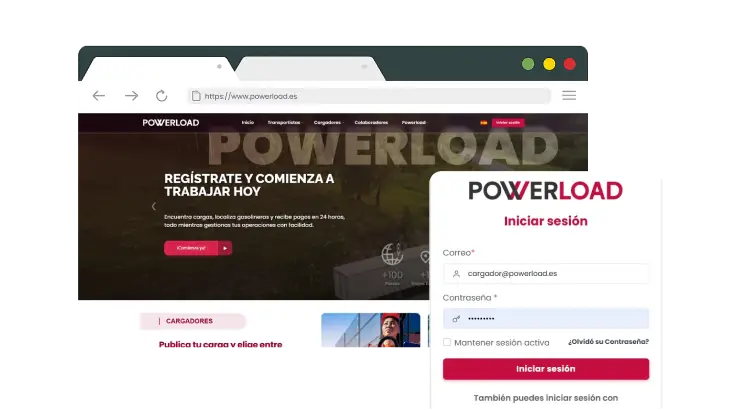
    Access your account

    Bullet

    Log in with your username and password at www.powerload.es

    Bottom Image
    Top Image
    2

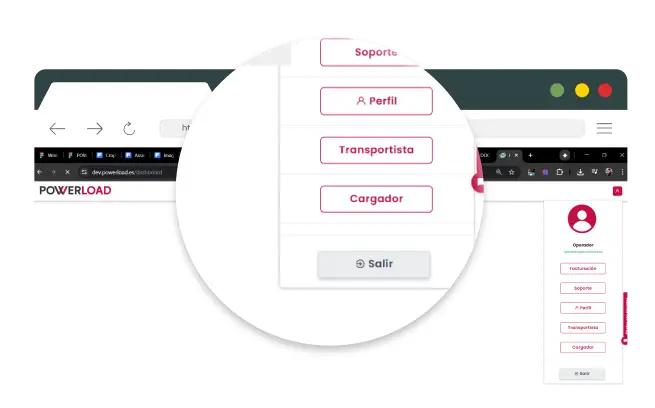
    Switch Profile to Shipper

    Bullet

    In the top menu select Profile.

    Bullet

    Click on "Shipper".

    Bottom Image
    Top Image
    3

    Create a Load

    Bullet

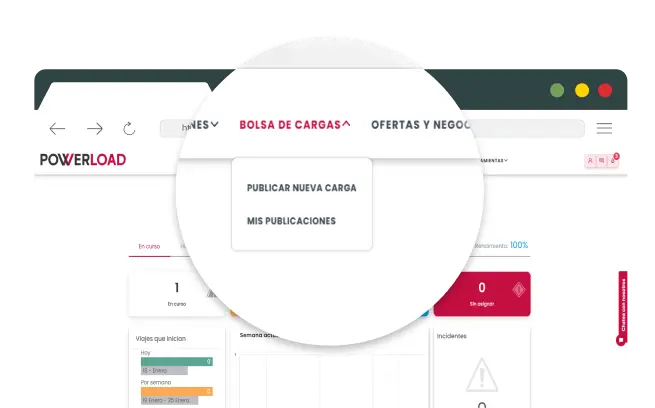
    Go to the FREIGHT BOARD menu and click on "Publish New Load"

    Bottom Image
    Top Image
    4

    Enter Load Details

    Bullet

    Fill in the required fields:

    • Type of merchandise.
    • Weight and volume.
    • Pickup and delivery location.
    • Date and time of loading.
    • Special conditions.
    Bottom Image
    Top Image
    5

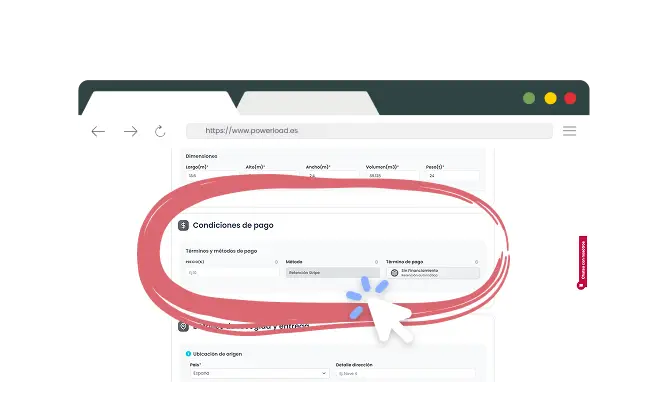
    Enter Your Payment Method

    Bullet

    Provide a valid payment method (bank transfer maximum 60 days) to pay the carrier in compliance with legal regulations.

    Bottom Image
    Top Image
    6

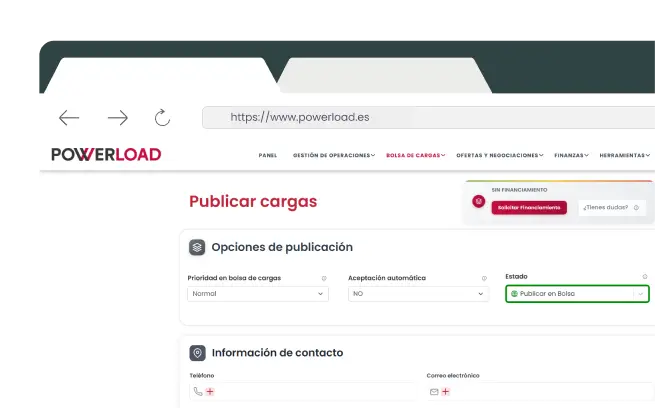
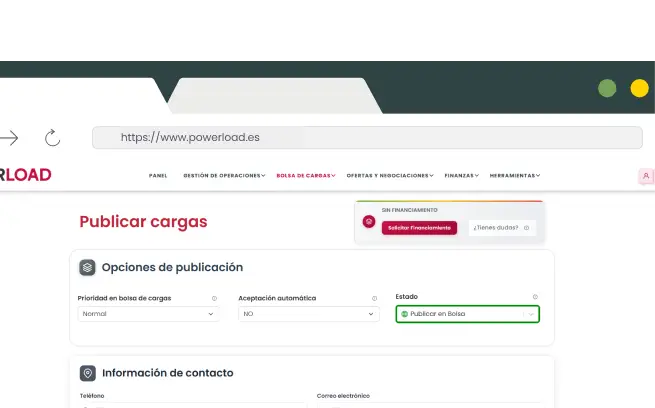
    Choose How to Publish

    Bullet

    Automatic acceptance

    • The carrier accepts and the order is generated automatically.
    Bullet

    Negotiable loads

    • Carriers send offers to negotiate conditions.
    Bullet

    Save as draft

    • Prepare and review before publishing
    Bullet

    Publish in first row (Gold Plan)

    • Maximum visibility and higher probability of quick acceptance

    Bottom Image
    Top Image
    7

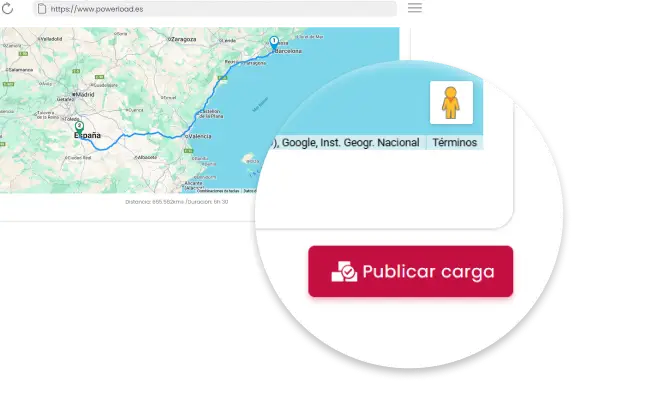
    Publish the load

    Bullet

    Review all information and press "Publish". The load will be available for carriers to accept directly or send offers to negotiate.

    Bottom Image
    Top Image
    8

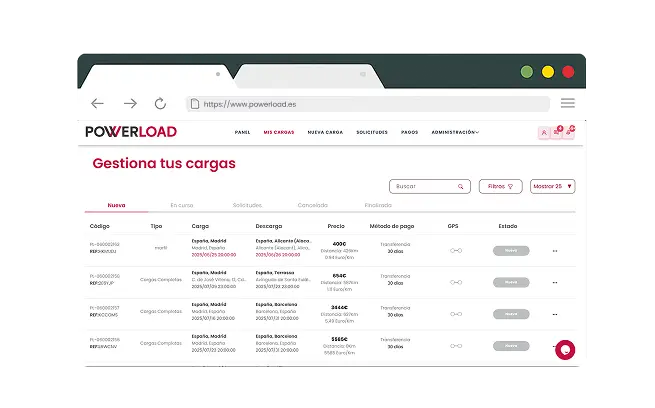
    Manage published loads

    Bullet

    Check that the load is registered in the load registry of the load management dashboard.

    Bottom Image
    Top Image
    9

    Manage your trip until completion

    Bullet

    Review information, publish, use integrated chat to coordinate, follow real-time GPS route and receive automatic invoice upon completion

    Bottom Image
    Powerload Logo
    Instagram LinkedIn Facebook YouTube
    Explore
    About Us Contact Us
    Information
    Legal Notice Privacy Policy Cookie Policy
    © 2026 POWERLOAD All rights reserved
    Discover MasterCard Visa Paypal